
How to Add a New WordPress Admin User
Here’s how to quickly add PressPilot as a new Admin user to your website. Follow our step-by-step instructions to add a new admin user to your WordPress website. Note, your admin area or dialogue boxes may look a little different to the image shown.
- Log in: Open your web browser and navigate to your WordPress website’s login page. This is usually your website’s domain name followed by “/wp-admin” (e.g., “www.yourwebsite.com/wp-admin”). You will be shown the following login dialogue box. If you do not see any login dialogue box stop now and contact us for further assistance.
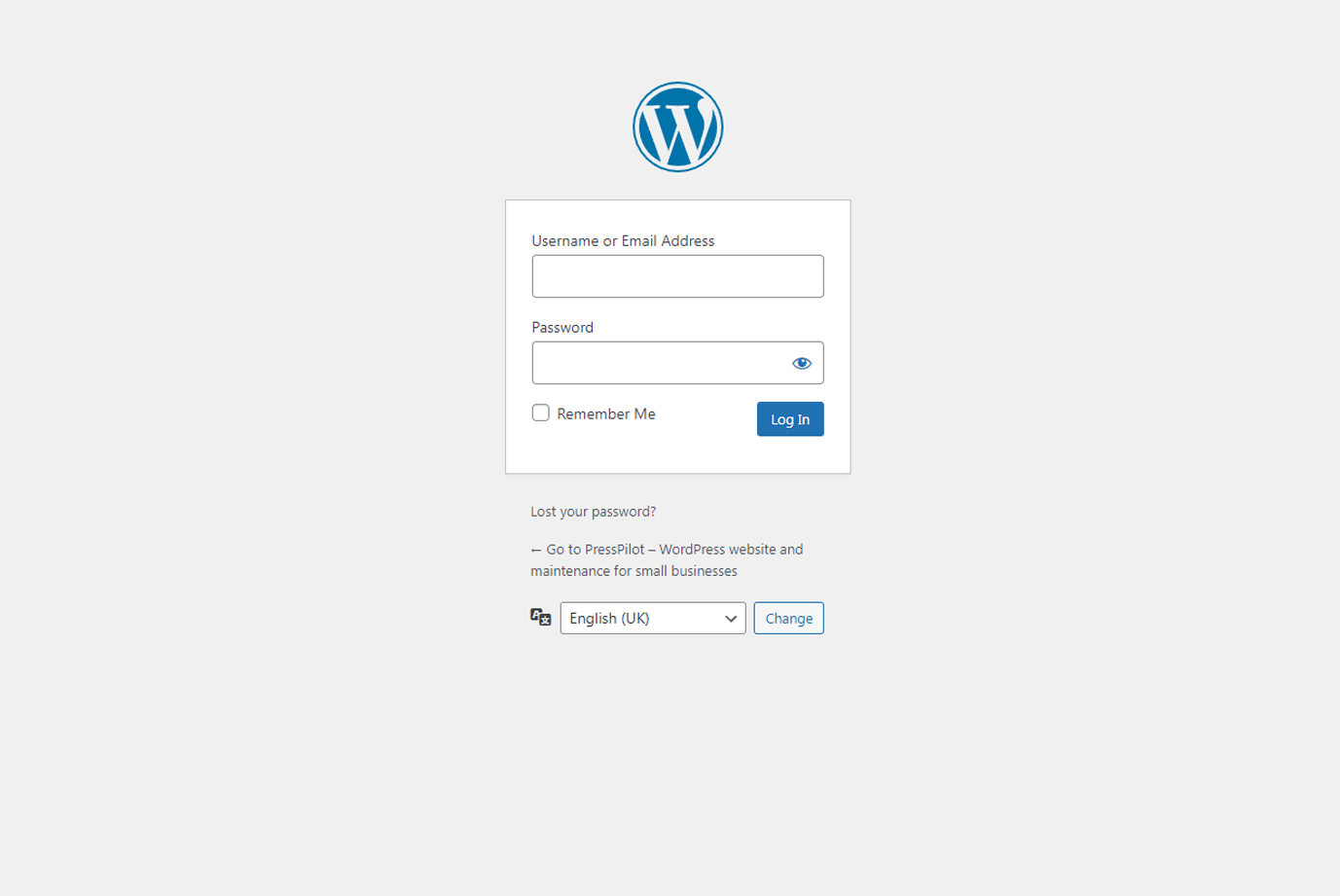
- Sign In: Enter your admin username and password to access the WordPress dashboard.
- Access Users: Once you’re in the dashboard, look for the “Users” option in the left-hand menu. Click on it to open the Users page. This should be /users.php (e.g., “yourwebsite.com/wp-admin/users.php”)
- Add New: On the Users page, you’ll see a list of existing users. To add a new admin user, click the “Add New” button at the top. This should be /user-new.php (e.g., “yourwebsite.com/wp-admin/user-new.php”)

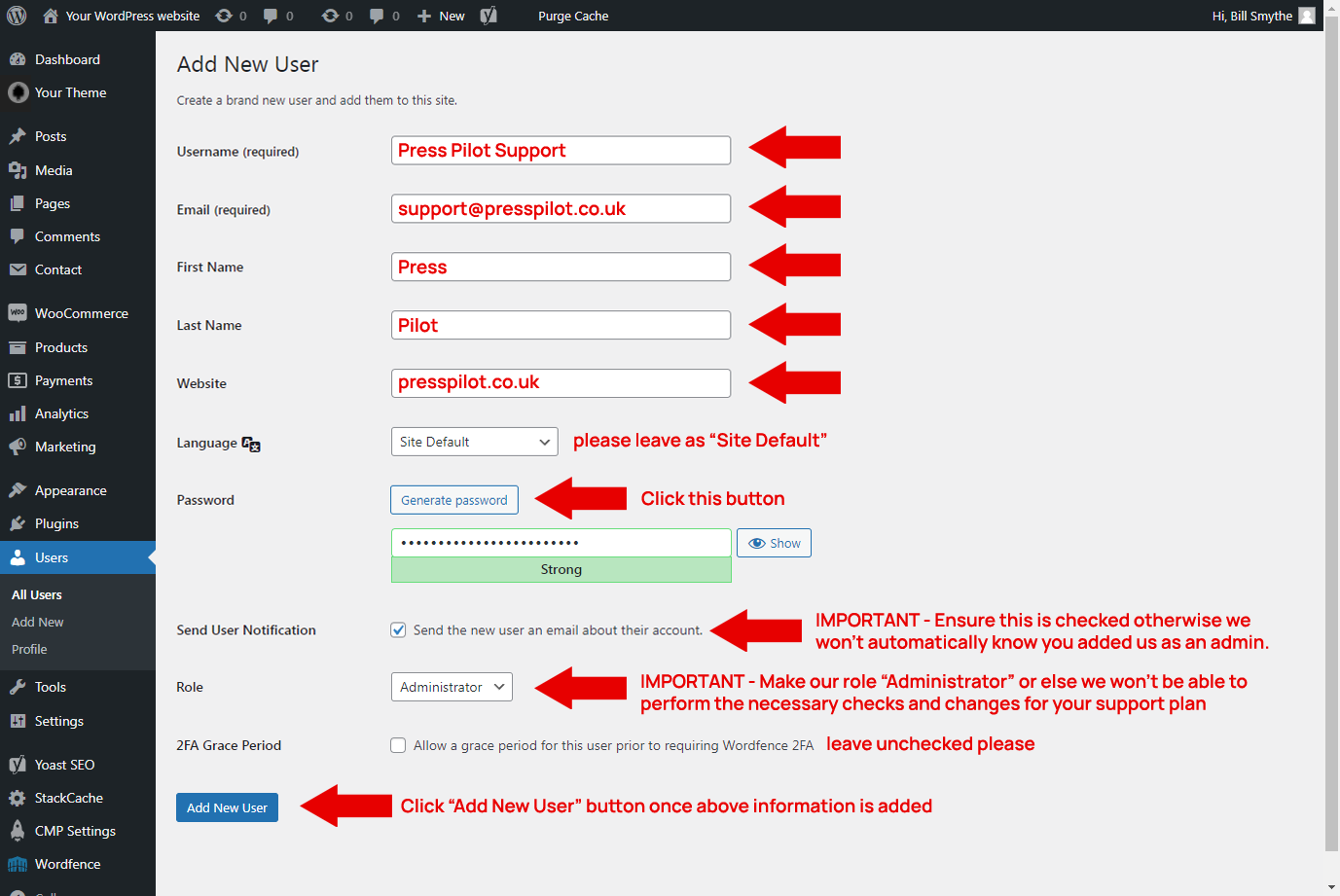
- Fill in Details: A new user form will appear. You’ll need to provide the following information for the new admin user:
- Username: PressPilot Support
- Email: support@presspilot.co.uk
- First Name: Press
- Last Name: Pilot
- Website: presspilot.co.uk
- Language: leave as “Site Default”
- Password: Create a secure password for the user or use the “Generate Password” option to generate a strong one.
- Role: Ensure you select “Administrator” from the drop down.
- Set Role: It is important you select “Administrator” in the role drop-down, to grant full admin privileges to our team. Otherwise we won’t be able to perform the necessary checks and changes for your support plan and may delay our work on your website.
- Additional Info (Optional): You might be able to add extra information about the user in the bio section or set a profile picture. These are optional and not necessary for our account.
- Send User Notification: Tick the box to automatically send a notification to us with our new login details. IMPORTANT – Ensure this is checked otherwise we won’t automatically know you added us as an admin and this may delay our work on your website.
- Add User: After filling in the required information, click the “Add New User” button at the bottom.
- Confirmation: You’ll see a success message indicating that the new admin user has been added. You can now log out of your account.
- We will receive a “New User Login” email with the details provided, we can then visit your website login page and enter our new username and password and have full admin access to the website.
Remember to keep your admin usernames and passwords secure, and only provide admin access to individuals who need it for website management.
If you have an issue with admin for your website get in touch and let PressPilot fix any of your security issues.
Photo Credit: Etienne Girardet